This Excel spreadsheet downloads historical Forex data from the Internet.
You can ask for bid, ask and mid rates for a range of historical currencies.
You can use this data to backtest your trading strategies, and perform technical analysis (such as plotting the EMA, RSI or MACD).
The spreadsheet is easy to use. You simply enter two three-letter currency symbols, two dates, and specify whether you want the bid, ask or mid price.

After clicking a button, the spreadsheet will then connect to a webservice, and download daily bid rates (using some clever VBA). The Forex data is imported into a sheet called “Data”.
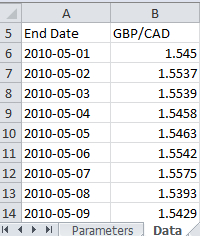
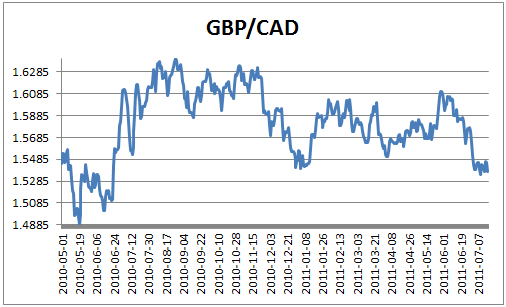
Now you can analyze and plot the forex data using all of Excel’s functionality. As an example, the spreadsheet plots the exchange rate data. If you wanted, you could easily add Bollinger Bands to the plot.
The VBA is not password-protected – feel free to modify, extend or reuse the code, or even learn from the principles embodied therein. I’d appreciate a link to investexcel.net though!
This is free Forex data that we’re downloading, and in no way shape or form compares with paid services. Using the VBA programming principles used in the spreadsheet, you can easily use other tools, like Access databases, instead of Excel.
You may also be interested in this spreadsheet which downloads historical stock prices from Yahoo straight into Excel.
The spreadsheet is in Excel 2010 format.
Update 29th July 2011: I’ve removed the password. Enjoy, and please come back and let me know what cool Forex applications you’ve made with it.
Update 20th January 2014. I’ve added an option to request the bid, ask or mid price.
Download Excel Spreadsheet for Automatically Downloading Forex Data from the Internet
I am interested in working this code into an existing workbook I have made. This looks like an awesome tool and will do most of what I need it to do. How can I go about getting that password for the VBA code though so I can validate a few things?
Thanks
Hi, I am really interested in the code,
im having a few problems getting my workbook to do the same thing but with stock data.
@Brent and @kristers: I've removed the password from the spreadsheet (just download it again). Let me know what you super cool applications you come up with!
Hi
It looks like a terrific tool to use with excell. However, I opened the link to the spread sheet and try just to chage dates but excell won’t update because “the macro is either not available in the work book or may be disabled”
Any suggestion?
thx
A
I’ve just tried the spreadsheet in Excel 2010 and it works perfectly for me.
When you loaded the spreadsheet in Excel, did you give the macro permission to run?
How do you modify the code so that you can query more than one “To Currency” at a time? So, suppose you want to get the FX rates for the conversion from GBP to up to 10 different currencies at the same time rather than changing the “To Currency and re-running over and over?
I tried the worksheet. I get an error
“Compile Error: Variable not defined” on this line
SortOn:=xlSortOnValues, Order:=xlAscending, DataOption:=xlSortNormal
This item is highlited: xlSortOnValues
I’ve just tested the worksheet on 64 bit Excel 2010 / Win, and it works as expected. What version of Excel/windows are you using?
I tried to run this on my WinXP Excel 2003
and i had same error as Jim got,
“Compile Error: Variable not defined”
SortOn:=xlSortOnValues, Order:=xlAscending, DataOption:=xlSortNormal
Hi,
I found your code very useful and have embedded it into one of my sheets. I would suggest updating the connection on each refresh rather than creating a new one as all of the connections will be refreshed on open unless this property is turned off on creation. The following code will achieve this:
Dim FX_table As QueryTable
Set FX_table = Sheets(strShtName).QueryTables(1)
FX_table.Connection = “URL;” & str
FX_table.Refresh
Another approach would be to delete all existing connections before adding a new one:
Public Sub RemoveQueries(shtName As String)
Dim ws As Worksheet
Dim qt As QueryTable
Set ws = Sheets(shtName)
For Each qt In ws.QueryTables
qt.Delete
Next qt
End Sub
It is possible to modify to show the open, high, low, and close?
Thanks (in advance),
Lance
Hi, works fantastic for me. I only had a problem using it on a german Excel version as the decimal separator was not correctly recognized. This could be overcome letting Excel know which character to recognize as the decimal separator. Maybe you could include it in your version to help other users who maybe jump into the same problem:
Sheets(“Data”).Range(“a5”).CurrentRegion.TextToColumns Destination:=Sheets(“Data”).Range(“a5″), DataType:=xlDelimited, _
TextQualifier:=xlDoubleQuote, ConsecutiveDelimiter:=False, Tab:=True, _
Semicolon:=False, Comma:=False, Space:=False, other:=True, OtherChar _
:=”,”, FieldInfo:=Array(Array(1, 1), Array(2, 1), Array(3, 1), Array(4, 1), Array(5, _
1), Array(6, 1)), DecimalSeparator:=”.”, ThousandsSeparator:=”‘”, _
TrailingMinusNumbers:=True
Thomas, your solution for “non-US” Windows works great.
Thanks a lot, you saved me plenty of time.
Thanks a lot for this very useful tool!
Just a remark on my side: you first set all calculations to manual and I personally prefer having them automatic, so I just added the following at the end of the GetData() macro:
Application.Calculation = xlCalculationAutomatic
Thanks again!
This is fantastic; without it I’d be looking at buying a commercial service, so thanks a lot!
One question: is there any way to get this thing to update automatically without pressing the button?
Try the technique at https://investexcel.net/3545/real-time-foreign-exchange-rates-excel/
Sam,
Thank you for this very useful program.
One thing I want to do is input either daily or weekly in the parameters box. I can do it by changing the word “daily” to “weekly” in the code.
I would like to do this from the Parameters box but it doesn’t seem to work even though I have declared the variable in the code as you have done.
This is what I have tried in the code after naming cell B9 as “dayWk”:
Dim dayWk As String
…
dayWk = DataSheet.Range(dayWk”.Value
…
& “&period=dayWk&display…”
Hi Sam,
Thank you so much for this.
One thing I’ve notice thsi gives you the bid price and I really need the “midpoint” rate, but when i try to change the macro I still get the Bid price. Any suggestions?
Thanks
Maria
I’ve updated the spreadsheet. You can now choose either the bid, ask or mid rate
Hi,
Great tool. It almost works flawlessly! 😉 As Maria reported, it’s not giving the mid market rates. I think the URL you are building in the macro is an old one. I tried to re-write the macro building a new URL which appears to work but then the section of code which creates the data sheet breaks.
Any chance you could have a look? The new URL code uses “margin_fixed=0” to get the mid market rate for any particular day. The complete URL which gets me to a csv table is http://www.oanda.com/currency/historical-rates-classic?date_fmt=normal&date=16/01/14&date1=01/01/14&exch=USD&exch2=USD&expr=GBP&expr2=GBP&format=CSV&margin_fixed=0
I guess the bit I’m not quite unlocking is how your code saves the table as comma separated values.
Thanks very much.
Keith
So I sort of figured it out. The URL you used builds a link to a download file, whereas the one I posted above links you to a table on a web page. Plus, if you use bid, ask, or mid it does return different numbers. So thanks very much.
I just wish I could have multiple currency pairs in one sheet… or better yet have all of this going straight into powerpivot!
Samir – awesome – time saving and easy to use. Tried to make a Paypal donation but didn’t accept a JPY payment
You can make a USD donation, and it’ll get converted over to JPY at the rate your credit card provider uses
Hello Samir,
OANDA has changed its website in the past days. Data is no longer available. Do you have a solution?
I am using a macro I built from scratch 2 years ago but I cannot find a good source website now to get exchange rates.
I appreciate your feedback.
Hello Samir!
Impressive tools for the data-driven! I have 2 questions for you:
1) I am comparing your Bulk Forex results (inparticular XAU w/currencies) to those Yahoo provides. The are not matching up. Are you providing the daily average?
2) Your sheet provides results also for the weekends although FOREX is not open then. I double checked today again and I am getting weekend results.
If you could spare a moment to address these I would be very appreciative.
Thank you!
Hi,
Thanks for such good website. It’s awesome to get codes ready for updated sheets. However, I am also looking if there is any possibility to get the rates from Oanda.com, historical rates in 5 decimal places. I don’t know if it is possible, if you have any code or write, please do let me know at sourabh.agarwal1@gmail.com
Regards,
Sourabh
Great tool! Thank you very much.
When I try to embed the code into my existing workbook I get a runtime error however.
Any ideas why this occurs?
Section:
With ActiveSheet.ChartObjects.Add _
(Left:=Range(“A11”).Left, Width:=375, Top:=Range(“A11”).Top, Height:=225)
Excel2007 on a Windows system.
Best,
Philipp
Hi,
I need to know if it is possible to get data as below:
From Currency: EUR
To Currency: USD
To Currency: INR
To Currency: TND
To Currency: GBP
To Currency: CHF
To Currency: CAD
To Currency: ZAR
On a particular date, if we need exchange rate for these many currencies. Can it be possible through adjustment in above coding.
Hello there, is there any solution for this request since the rest of the code and way of exporting information is perfect only need this to implement it in my sheets so it can populate all currencies needed at once.
Thank you in advance.
Also big thanks to Samir. Great job man.
Dear Shamir,
OANDA now has also changed the historical data page and calls it …historical-rates-classic. I tried to code my macro to download from this page but I guess they also changed the format of the date in the link.
I checked with your excel sheet, ForexExcelImport.xlsm, and the link is really not working anymore.
Do you know of another website that has historical forex data that I can download with the definition of a period?
I appreciate your feedback.
Greetings
Ton
Hi Ton,
I have checked the sheet, it’s working perfectly fine. I don’t know what issues, you are facing. I guess, you have not downloaded correct sheet.
Your means of describing the whole thing in this post is actually nice, all be able to simply
be aware of it, Thanks a lot.
Any way to se also high,low and close price?
This is excellent, thanks Samir!
works excellent and love the code…truly amazing the power of vba/excel!
Hi all!
The code is just fantastic and works fine on my US laptop!
I only had a problem using it on a german Excel version in my office as the decimal separator was not correctly recognized.
could this be overcome letting Excel know which character to recognize as the decimal separator?
I am new to VBA and don´t really know what and where do I need to modify the original source code.
Thank you very much for your help, great work!
Luca
Hi,
I am trying to use this tool to streamline some financial information but there seems to be a bug in the code I downloaded. No matter what I fill in in the excel sheet, the code always seems to extract the same period between today and a month ago, whereas I need much older data.
How far back does the code go ?
I am looking at the VBA code, but I don’t see any hardcoded limits, so perhaps it’s due to the oanda website itself ?
When I fish out the string ‘ str’ from the local variables and use in mozilla it gives me a csv file to download called ‘data.csv’ with the previous month information, while endDate and startDate are correctly coded.
Any idea where the problem could be ?
Simon
Yes, I think Oanda have changed something behind the scenes
Hi,
AS Simon said this is not working properly anymore? Is there any alternative way of getting the data? Could this be fixed?
Cheers
I download the latest version of ForexExcelImport.xlsm.
The “bid” and “ask” always return the “bid” exchange rate.
Hey Samir!
This spreadsheet is really awesome. I am looking to expand the date range, however, it appears that the data is being drawn from a csv file which is automatically set to the last 30 days. How do you code the excel spreadsheet to draw from the csv file from the past 1 year? 3 months? 6 months?
I really appreciate your help and advice!!
Well done Sam. This was very easy to understand and implement.
Thanks!
Cheers, Dale
Hi there – thanks for producing this spreadsheet it is very useful! I’m interested in making a spreadsheet that can download historic stock prices and FX rates at the same time to plot FX neutral stock prices over time. Is it possible to have a version without a password for the code?
Thanks,
Tom
Hello I’m a Data Science Student.
Please if anyone could help me find a EUR/USD Historical Data in an excel file with a big number of line (like hundreds of thousands or more), I’m working on Exchange rate forecasting in my graduating project. If anyone could help please contact me on zineb.bousbaa@gmail.com
Hi, looks like the Oanda link in the Macro for historical FX rates has stopped working. This may be due to Oanda stopping providing the service for free.
Any idea what the syntax would be for getting the FX data from Yahoo Finance?
Thanks
Hello,
I only discovered your tool two or three months ago and have enjoyed convenience and accuracy the macro has allowed me to build reports for work (for internal use, not a publicly traded company), but it appears that sometime since April 1 Oanda has changed something in the structure of their databases that renders the workbook outdated. I discovered there was a problem when I started updating my reports for April data and the macros did not update my main table as I expected. I re-downloaded your source workbook and attempted to run an update for the FX rate for a date-range that worked previously, I got an error that the “destination” range was invalid.
Do you expect to update this workbook any time soon? I would appreciate if you do!
I’m having the exact same problem as last two comments – file is no longer working. This tool was amazing and curious if there is a fix or something similar?